Showing posts with label installation. Show all posts

Tuesday, August 2, 2016

Completely UNINSTALL corrupted instance of Visual Studio 2010

Visual Studio 2010 is a comprehensive programming suite for app development on Windows platform. It can be good or evil when it comes to such an elephant build with additional packages and tools to be installed all at one time. It takes lot of space and requires attention while doing uninstallation. Any error generated during the uninstallation process could actually break the whole thing. You can repair it via the installation wizard before you can actually uninstall it.


When you land on this article, you might actually have left the installation in a broken state and you might have desparately searched through the Internet to find a resolution for all these. The thing is you just cannot uninstall VS2010 in a normal way. Indeed, Microsoft provide a better way for uninstallation in VS2012 or newer while we're still sticking to the 6 years old VS build.

Microsoft has released a tool to fix all kinds of registry errors or blocking issue during uninstallation of any program, i.e., any program which appears in the uninstall list.

URL:
https://support.microsoft.com/en-au/help/17588/fix-problems-that-block-programs-from-being-installed-or-removed

It's a troubleshooting tool which guides you through to the right option which actually fixes those strange errors for you and uninstalls the program as specified from there. I have tried this tool and ultimately removed my broken VS build on Windows 2008 server. It claims to support Windows version from 7 to 10.

You may need to try a further cleanup by uninstalling those depending components of Visual Studio via Control Panel | Programs and Features.

Finally, it frees up huge amount of diskspace on the server.


Friday, November 6, 2015

Install PHP 7 + mod_fcgid + opcache on Ubuntu 14.04


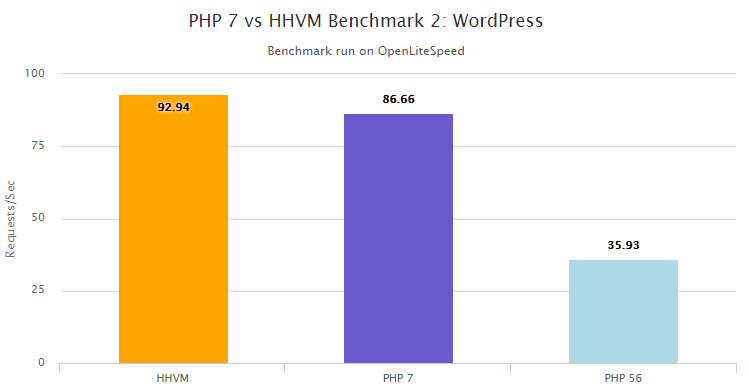
PHP 7 has become a hot topic in recent time as it claims to have the running speed catching up with HHVM whereas no big change in the source code is required, except for those deprecated function calls in the new release.

This is good news as nowadays Guest VM for hosting tends to be slim and small in terms of resources, i.e., 512MB, 256MB or smaller. Running a plain old build of Apache server with default settings is going to slow down everything.

This is a quick guide for a fresh installation of LAMPP server with newest PHP 7 engine on top of it. To maintain high response rates without interruption in a high concurrency situation, you may want to run PHP in CGI mode. Please check those steps below carefully. For the god sake, you might miss something along the passage without the help of a cup of coffee which is exactly my situation.

PHP 7 is now in the final stage before the official release is out. So, the source update is happening frequently than ever. As of the time of writing, it is PHP 7.0.0 RC 6. Of course, no one would like to miss that bit, even for nightly update.


Here we start in Terminal app on Ubuntu 14.04:

Step 1:


Try installing LAMPP from the ground up:

$
$ sudo apt-get update && sudo apt-get install lamp-server^


Please mind the caret (^) at the end.

You will have to install packages for Apache 2, MySQL & PHP 5 (not PHP 7 at the moment).

Step 2: (Optional)


You might want to upgrade a bit for the not-so-entirely-new version of Apache 2 which is locked in version 2.4.7 in Ubuntu 14.04 LTS Release as LTS implies not only a stable build but also less frequent update to its packages.

For upgrading Apache 2, you may add new repo to Ubuntu's source list and do a forced re-installation:

$
$ sudo apt-get install python-software-properties
$ sudo add-apt-repository ppa:ondrej/apache2
$ sudo apt-get update && sudo apt-get -f install apache2
$

Step 3:
Obtain PHP 7 early release


This is to add Zends PHP7 early access repo:

$
$ sudo echo "deb http://repos.zend.com/zend-server/early-access/php7/repos ubuntu/" >> /etc/apt/sources.list
$


To install PHP7 nighly build, we need to issue the following command:

$
$ sudo apt-get update && sudo apt-get install php7-nightly
$


Once done, PHP7 will be installed to /usr/local/php7. So you might want to keep this in mind to find something important regarding PHP configuration.

To use PHP7 with Apache, first make sure Step 1 is done properly, then copy the required modules and libs to Apache 2 folder:

$
$ sudo cp /usr/local/php7/libphp7.so /usr/lib/apache2/modules/
$ sudo cp /usr/local/php7/php7.load /etc/apache2/mods-available/
$


For initial PHP with OpCache configuration, we can create new php.ini in the following path:

/usr/local/php7/php.ini

Please copy and paste the following parameters into php.ini:
max_execution_time=600
memory_limit=128M
error_reporting=0
display_errors=0
log_errors=0
user_ini.filename=
realpath_cache_size=2M
cgi.check_shebang_line=0
zend_extension=opcache.so
opcache.enable_cli=1
opcache.save_comments=0
opcache.fast_shutdown=1
opcache.validate_timestamps=1
opcache.revalidate_freq=60
opcache.use_cwd=1
opcache.max_accelerated_files=100000
opcache.max_wasted_percentage=5
opcache.memory_consumption=128
opcache.consistency_checks=0


Step 4:
Install mod_fcgid module


$
$ sudo apt-get install libapache2-mod-fcgid
$


Step 5:
Enable and disable relevant Apache modules


Default build of Apache use MPM Event but for mod_fcgid to work we need to enable MPM Worker instead. Before enabling new MPM, we need to disable previously enabled MPM modules first.

For one important thing here, you might have to entirely disable PHP5 module in order to avoid any conflict with the upcoming PHP7. Apache can't have both PHP5 and PHP7 modules loaded for the same .php filetype handling or else Apache won't even start.

$
$ sudo a2dismod mpm_event
$ sudo a2dismod mpm_prefork
$ sudo a2enmod mpm_worker
$ sudo a2dismod php5
$


Step 6:
Enable SSL in Apache


Enable SSL module as follow:

$
$ sudo a2enmod ssl
$ sudo mkdir /etc/apache2/ssl
$

Prepare self-signed certificate:

$
$ sudo openssl req -x509 -nodes -days 3650 -newkey rsa:2048 -keyout /etc/apache2/ssl/apache.key -out /etc/apache2/ssl/apache.crt
$

The key and certificate will be created and placed in your /etc/apache2/ssl directory.

Open the default SSL configuration file with root privileges now:

$
$ sudo nano /etc/apache2/sites-available/default-ssl.conf
$

Modify two lines to match the newly created certificate files:

        SSLCertificateFile /etc/apache2/ssl/apache.crt
        SSLCertificateKeyFile /etc/apache2/ssl/apache.key

And finally it may look like this:
<IfModule mod_ssl.c>
    <VirtualHost _default_:443>
        ServerAdmin webmaster@localhost
        DocumentRoot /var/www/html
        ErrorLog ${APACHE_LOG_DIR}/error.log
        CustomLog ${APACHE_LOG_DIR}/access.log combined
        SSLEngine on
        SSLCertificateFile /etc/apache2/ssl/apache.crt
        SSLCertificateKeyFile /etc/apache2/ssl/apache.key
        <FilesMatch "\.(cgi|shtml|phtml|php)$">
                        SSLOptions +StdEnvVars
        </FilesMatch>
        <Directory /usr/lib/cgi-bin>
                        SSLOptions +StdEnvVars
        </Directory>
        BrowserMatch "MSIE [2-6]" \
                        nokeepalive ssl-unclean-shutdown \
                        downgrade-1.0 force-response-1.0
        BrowserMatch "MSIE [7-9]" ssl-unclean-shutdown
    </VirtualHost>
</IfModule>

To activate SSL Virtual Host, please type:

$
$ sudo a2ensite default-ssl.conf
$


Step 7:
Add mod_fcgid related configurations


Go find the default configuration files for Apache, like

/etc/apache2/sites-enabled/000-default.conf

/etc/apache2/sites-enabled/default-ssl.conf

Edit each file with the following instructions.

Add the following configuration to the root directory section in the vhost block:

<Ifmodule mod_fcgid.c>
 # FCGID registers a handler named fcgid-script
 AddHandler fcgid-script .php
 Options +ExecCGI
 FcgidWrapper /usr/local/php7/bin/php-fcgid-wrapper
</IfModule>


Also, add the relevant settings outside the vhost block:

<Ifmodule mod_fcgid.c>
 # Context - server config
 FcgidMaxProcesses 150
 # Otherwise php output shall be buffered
 FcgidOutputBufferSize 0
</IfModule>


Step 8:
Add Wrapper script of php-cgi


Now you need to create the wrapper script that is used by mod_fcgid to launch php-cgi processes.

Script filename: php-fcgid-wrapper

#!/bin/sh
# Set desired PHP_FCGI_* environment variables.
# Example:
# PHP FastCGI processes exit after 500 requests by default.
PHP_FCGI_MAX_REQUESTS=10000
export PHP_FCGI_MAX_REQUESTS
# Replace with the path to your FastCGI-enabled PHP executable
exec /usr/local/php7/php-cgi


The actual location of the wrapper script at /usr/local/php7/bin/php-fcgid-wrapper can be stored anywhere and the path has to be mentioned in apache configuration.

Make the wrapper script executable using chmod:

$
$ chmod +x /usr/local/php7/bin/php-fcgid-wrapper
$


Step 9:
Turn on Apache server


This is the final and the most important step for all those configurations we have made:

$
$ sudo service apache2 restart
$

Step 10:
Testing


You can open a browser locally and visit https://localhost to check if SSL connection is working properly.

Or, try create a simple php info page to see if all parameters are setting as desired:

$
$ sudo echo "<php phpinfo();" /var/www/html/test_me.php
$

It's been a long time PHP's performance seems to be lagging behind since Facebook's era comes. People who are aggressive might lean to take HHVM approach to accelerate things up, yet the development team might meet new challenges with switching coding practice and taking the risk of incompatibility with official PHP release.


You go for the option of PHP7 as you have the needs for speed. Forgetting about compatibility and performance sacrifice, let's test your apps with this brand new PHP engine!



Saturday, September 26, 2015

Ultimate Guide on TP-LINK Archer C2 AC750 Wireless Dual Band Gigabit Router - USB Printer sharing on OS X

This guideline should be applying to any USB compatible printer for sharing on OS X over the USB port of TP-LINK Archer C2 Wireless Router.


The best thing of this router is that it's NBN ready and has both WAN/LAN ports supporting up to 1000Mbps which is abundant for movie streaming and VOIP communications within local network and a possible extension to future upgrade of NBN services. As for 802.11ac standard, this router does the right job for 5GHz Wi-fi transfer which is up to 433Mbps. It's also backward compatible with 802.11b/g/n. The cost is average but you might feel good about having an 802.11ac compliant router with this price tag. Compared with my old 802.11n router, it really makes a difference in terms of the speed and stability. One benefit is beamforming if you are using newer Macbook with antenna supporting 802.11ac standard.

Ref: http://www.tp-link.com.au/products/details/cat-9_Archer-C2.html

However, the firmware and software support is limited for this brand. Yet, it's still possible to find have a software upgrade to make things working.

First thing first, upgrade the firmware to the latest stable version via here:

Ref: http://www.tp-link.com.au/download/Archer-C2.html#Firmware

High-end product like Archer C7 is based on the same architecture as C2 so their technical support recommended using newer version of software available for Archer C7 instead.

Ref: http://www.tp-link.com.au/products/details/cat-9_Archer-C7.html

The key to bridge up the USB printer connected to the router is the software called:
TP-LINK USB Printer Controller

It's better to use the package from a recent release of newer product line like Archer C7:

Try downloading the installation package 

Archer C7_V2_USB_Printer_Controller_Installer_Mac 

from here:

http://www.tp-link.com.au/download/Archer-C7.html#Utility 

Extract it and find the .DMG file to install on Mac OS X:

TP-LINK_USB_Printer_Controller_Installer_Mac.dmg

A system reboot is required.

Before opening the printer controller software, it is necessary to have USB printer plugged into your Mac computer first and finish an initial setup based on USB connection. Assuming you have the printer driver for your USB printer, it's an easy but important step to setup a local printer profiler on your Mac.

Once it's successful on setting up your print via local USB connection, you should have a available local printer in "Printers and Scanner" Control Panel. 

Now you can proceed to plug the USB printer into the USB port of TP-LINK Wireless Router for remote setup.

The software TP-LINK USB Printer Controller will let you to bridge up the remote printer to your local USB printer profile. It may show offline at first but will turn into online mode after the first remote printing is done successfully.

Assuming you are connecting to the Wi-Fi network from TP-Link Wireless Router, you need to open up TP-LINK USB Printer Controller interface. 

Under the Router's name, you should find the USB printer device (whether it's UNKNOWN or exactly the printer model name) already connected to the router. 


Click on the printer device and click on Auto menu button and then "+Set Auto-Connect Printer" button to find the installed printer list of available local printer profiles on you Mac. 

Select the target printer profile and click Apply button to link up the remote printer and you're done.

Remember to keep TP-LINK USB Printer Controller Window opening during remote printing process. Now, you can have a try to print out anything you like with your local printer profile on your Mac and the print job will be redirected to the shared printer on the wireless router.


Wednesday, May 21, 2014

Installing VMware vSphere Client 4.1 U3 on Windows Server 2012 R2

VMware vSphere Client 4.1 is not supported by Windows Server 2012 R2. This software was invented during WinXP regime and becomes not quite compatible with nowadays versions of Windows. Still, there are a few tricks to make it work again. I tested it on Windows 2012 R2 platform while it might be working on Windows 8 as well.

Before we proceed, we need to make sure that VMware ESXi platform has been installed properly on the target machine with a known IP address. This will lead to the next step of the installation process.

For the direct download of vSphere Client v4.1, please access the frontpage of your ESXi web management console via web browser (with URL like https://IP.TO.ESXI.MACHINE) and click on the hyperlink of Download vSphere Client. This makes sure that we have got the version of vSphere Client compatible with the actual ESXi environment we are managing.

The installation file will be named with something like: VMware-viclient-all-4.1.0-???????.exe

Assuming the file has been downloaded to a folder C:\Downloads\, we need to process it before use.

A little pre-requisite for vSphere Client is J# redistributable package which can downloaded via:

First, run the J# package to install so as to make Windows server meet the installation requirements. We can skip it if we already have the package installed or we may let vSphere Client installation file to deal with this.

Before the actual installation of vSphere Client V4.1, it is necessary to set some options on the installation file itself.

Right-click on the installation executable and select Properties. 

Under Compatibility tab, check the following checkboxes:

  • Run this program in compatibility mode for Windows 7
  • Run this program as an administrator

Double-click on the installation executable like VMware-viclient-all-4.1.0-???????.exe and it should run through the whole process successfully. 

After all, the icon of vSphere Client will appear on Windows Desktop.


Tuesday, December 6, 2011

PHP Accelerator for XAMPP on Linux

Since PHP 5.3 was released, it had been even harder to find stable accelerator to boost up the performance. Recently, I searched through the news and blogs about any breakthrough of PHP accelerator and found some good news. One of those package called APC has released new packages which claimed to fully support PHP 5.3. So far it has good responses among the users regarding stability and performance. Also, APC is going to be deployed as built-in accelerator in PHP 5.4 soon.

To install new package of APC from the scratch, we need something more installed on Linux platform:

Packages required:
Autoconf: Whatever version is fine.
XAMPP: Version from 1.7.2 to 1.7.7 should be okay.
XAMPP development source: This must be corresponding to the original version of XAMPP package.
APC: Latest APC package available for the best support.

To install Autoconf on Linux, like Ubuntu:
#
$sudo apt-get install autoconf


To install XAMPP:
Download and install XAMPP package from http://www.apachefriends.org/en/xampp-linux.html
#
$wget http://www.apachefriends.org/download.php?xampp-linux-1.7.7.tar.gz

$sudo tar xvfz xampp-linux-1.7.7.tar.gz -C /opt


Of course, you need to finish the basic setup and make sure Apache server and MySQL are running before you proceed to the following steps.

To install XAMPP development source:
Use the following link and modify version of XAMPP pacakge as required.
Here, assuming we have installed XAMPP 1.7.7 package:
#
$wget http://www.apachefriends.org/download.php?xampp-linux-devel-1.7.7.tar.gz


$sudo tar xvfz xampp-linux-devel-1.7.7.tar.gz -C /opt


To compile and install APC source:
#Download and extract source files

#
$wget -O APC-latest.tar.gz http://pecl.php.net/get/APC

$tar xvfz APC-latest.tar.gz

$cd APC-*


#run phpize while in APC source directory
#
$sudo /opt/lampp/bin/phpize

#Configure source with setting appropriate config path pointing to XAMPP php-config file
#
$sudo ./configure --with-php-config=/opt/lampp/bin/php-config

#Compile and install
#
$sudo make

$sudo make install


Now, add new line into php.ini and restart Apache server to initialize APC module:

#
$sudo sh -c "echo 'extension=apc.so' >> /opt/lampp/etc/php.ini"

$sudo /opt/lampp/lampp stopapache


$sudo /opt/lampp/lampp startapache


To check if APC is running, type the following command:
#
$sudo /opt/lampp/bin/php -r 'echo phpinfo();' | grep apc --color

And then you should see some related information about running APC module when things don't go wrong.