Friday, April 15, 2016

Nginx php-fpm security.limit_extension issue

Just found something weird while tweaking the configurations in Nginx PHP-FPM. URL via https suddenly went offline and the server log shows something as follows:
[error] 18292#0: *1 FastCGI sent in stderr: "Access to the script '/usr/share/nginx/html' has been denied (see security.limit_extensions)", client: x.x.x.x, server: localhost, request: "GET /index.php HTTP/1.1", host: "xxx.net"

Although people suggest to turn off security.limit_extensions by setting it to nothing, it really raise me a bit of security concern.

It ends up there's one line in the config file /etc/nginx/sites-enabled/default which causes the error:
#
#
fastcgi_param PATH_TRANSLATED $document_root$fastcgi_path_info;
Comment it out is okay while the .php page loads fine if it's changed to something else:

# Fix for missing params and blank php page display problems
include fastcgi_params;
fastcgi_param SCRIPT_FILENAME $document_root$fastcgi_script_name;
fastcgi_param PATH_INFO          $fastcgi_path_info;
#fastcgi_param PATH_TRANSLATED    $document_root$fastcgi_path_info;
fastcgi_param PATH_TRANSLATED    $document_root$fastcgi_script_name;
Reloading nginx server again and things are loaded up properly!


Thursday, April 14, 2016

Adding Fail2Ban UFW Portscan Filter on Ubuntu

To further prevent portscan from bad bots around the world, there's a way of making use of Fail2Ban filter.

Assuming Fail2Ban is in place, edit the config file as below;
$ sudo nano /etc/fail2ban/jail.local

Add new section in jail.local:

[ufw-port-scan]

enabled   = true
ignoreip  = 127.0.0.1/8
port      = all
filter    = ufw-port-scan
banaction = ufw
logpath   = /var/log/ufw.log
maxretry  = 20

Create new filter as follows:
$ sudo nano /etc/fail2ban/filter.d/ufw-port-scan.conf

Add new lines in ufw-port-scan.conf:
[Definition]
failregex = .*\[UFW BLOCK\] IN=.* SRC=
ignoreregex =
Create ban action config file as follows:


$ sudo nano /etc/fail2ban/action.d/ufw.conf

Add new lines in ufw.conf:


[Definition]
actionstart =
actionstop =
actioncheck =
actionban = ufw insert 1 deny from  to any
actionunban = ufw delete deny from  to any

Have a service restart and it's good to go.
$ sudo service fail2ban restart

It's possible to run a test for the regex rule as well:
$ fail2ban-regex /var/log/ufw.log '.*\[UFW BLOCK\] IN=.* SRC='

Then you might get some results back like these:

Running tests
=============

Use   failregex line : .*\[UFW BLOCK\] IN=.* SRC=
Use         log file : /var/log/ufw.log.1


Results
=======

Failregex: 163 total
|-  #) [# of hits] regular expression
|   1) [163] .*\[UFW BLOCK\] IN=.* SRC=
`-

Ignoreregex: 0 total

Date template hits:
|- [# of hits] date format
|  [163] MONTH Day Hour:Minute:Second
`-

Lines: 163 lines, 0 ignored, 163 matched, 0 missed


Monday, April 11, 2016

Nginx PHP-FPM display blank page for .PHP file on Ubuntu

Setting up new Nginx instance wasn't a funny thing as stated on most blogposts while it display blank page during startup. This is annoying when people set things up from scratches.

First thing first:

Check whether PHP-FPM is running:
$ ps -aux | grep php-fpm --color


$
$ ps -aux | grep php-fpm --color
root      1898  0.0  1.8 209928 18992 ?        Ss   11:48   0:00 php-fpm: master process (/etc/php/7.0/fpm/php-fpm.conf)                      
www-data  1900  0.0  0.6 210060  6660 ?        S    11:48   0:00 php-fpm: pool www                                                            
www-data  1901  0.0  0.5 210060  6088 ?        S    11:48   0:00 php-fpm: pool www   


Also, you may notice that running processes may be owned by someone else, like nginx, apache or whatsoever. Make sure user/group setting in php-fpm config file is referring to the same user/group as set in Nginx config file, like www-data/www-data.

Default location of php-fpm 7.0 config file:

/etc/php/7.0/fpm/pool.d/www.conf

Default location of Nginx config file:
/etc/nginx/sites-available/default

Back to the question about why nginx displays a balnk page instead? Let's take a look at the Nginx config file:

...
...
server {
        ...
        location ~ \.php$ {
                try_files $uri =404;
                fastcgi_split_path_info ^(.+\.php)(/.+)$;
                fastcgi_cache  microcache;
                fastcgi_cache_key $scheme$host$request_uri$request_method;
                fastcgi_cache_valid 200 301 302 30s;
                fastcgi_cache_use_stale updating error timeout invalid_header http_500;
                fastcgi_pass_header Set-Cookie;
                fastcgi_pass_header Cookie;
                fastcgi_ignore_headers Cache-Control Expires Set-Cookie;
                fastcgi_pass unix:/var/run/php/php7.0-fpm.sock;
                fastcgi_index index.php;
                include fastcgi_params;
                # Fix for missing params and blank php page display problems
                fastcgi_param SCRIPT_FILENAME $document_root$fastcgi_script_name;
                fastcgi_param PATH_TRANSLATED $document_root$fastcgi_script_name;

        }
}


The line "include fastcgi_params" actually refers to the file /etc/nginx/fastcgi_params which has various fastcgi_param variables initialized when calling. Unfortunately, two important variables went missing leading to an unknown blank page when startup.

They are SCRITP_FILENAME and PATH_TRANSLATED. Add them back to Nginx config file and PHP things execute again!

Ref: https://www.narga.net/avoid-nginx-wordpress-blank-page/


Thursday, January 7, 2016

Windows 10 Wi-Fi get disconnected intermittently


Having witnessed the rollout of Windows version 3 yet I'm not a big fan. Now it turns out to be version 10. For some reasons I need to start digging into Google searches to find something useful. The fact is that my friend's parent get into the trouble of using Windows laptop at home and they are not tech savvy enough to adapt to the new order set by Microsoft in the new year. After an upgrade to Windows 10, wah la! Everything is not working! That's what you might expect. Well, fixing the problem would be easier than teaching them Linux or OS X from the ground up.

Having updated the Wi-Fi adaptor driver provided by the manufacturer, the wireless connection seems to work for a while. And then thing's happening... Internet Explorer becomes unresponsive and shows up an error regarding network connection. Same thing happens on Microsoft Edge. It ends up the wireless connection being broken and not recovering on time. It actually remains broken until you do something. Most of the time, Wi-Fi hotspot needs to be manually connected again whereas it's a little bit beyond what the elderly would understand. They might just blame someone for not setting things up right.

To stay away from the trouble, we need to come up with a all-year-round solution which automatically cure this bad symptom.

An active recovery process sounds good in this case. By setting up a event scheduler, it is possible to monitor the disconnection and then launch a series of commands to recover network connection behind the scene. Actually, Grannies don't even want to see something is fixing up their trouble.

To create an event that’s triggered when the network is disconnected, create an event schedule with using 10001 for the Event ID.

Launch Windows Task Scheduler from All Programs –> Accessories –> System Tools.

Click Action –> Create Task…
Give your task a name in the General tab, and then click Triggers and then click New.

Log: Microsoft-Windows-NetworkProfile/Operational
Source: NetworkProfile
Event ID: 10001

You’ll also want to make sure that there aren’t any network connection conditions (since you won’t be connected to the Internet when this happens).

Add some actions in the Actions tab and then click OK to finish making your task. Of course, it's not like that it popup a message and says "It worked!" and then thing's resolved. We need to do some more by adding a batch script to fix things up.
Talking about the Actions tab, it is actually quite possible to run PowerShell script or Batch file to regulate the broken connection.

Someone came up a solution to recover network disconnection since Windows 8 released, so it's not a new problem after all. I don't use Windows 8 myself so didn't realize this problem at all.

Possible batch script with DOS commands would be like this: 

C:\>
C:\>netsh interface set interface name="Wi-Fi" admin=disabled
C:\>netsh interface set interface name="Wi-Fi" admin=enabled
C:\>ipconfig /release
C:\>ipconfig /renew
C:\>arp -d *
C:\>nbtstat -R
C:\>nbtstat -RR
C:\>ipconfig /flushdns
C:\>ipconfig /registerdns
Change the actual interface name to suit your needs. It can be "Wi-Fi" or "Wired" or something else in particular. Take a look at your network adapter settings and see what needs to be changed.

Be it "fixmywifi.bat" or "givemebackmynetwork.bat". Just include the script file into Actions tab and hopefully it will run and try to recover the network connection at the background whenever a system event of disconnection is fired.


Embedded image in email via PHP Mail_mime

Ever try the best way to include your favourite logo image in the email message in the hope that your recipients will actually see it?

It was quite confusing why the image would show up on one email client but not the others. One challenge would be how to display an image correctly in the message for MS Outlook client.

After a reading on this blog, there are basically at least three ways to do so. Of course, we will need to find a balance between the compatibility among various types of email clients and the overall size of email message to be sent.

CID embedded image (a.k.a. inline image) is the old-school way to include images or graphics in HTML formatted message. It might increase the size of each email you send out. But, it is by-far the most compatible way to have the image displayed by desktop email clients and web mail services.  Unfortunately, the trade-off would be the inconsistent behaviour expressed by the email clients and sometimes it turns out to be ugly.

Example as below:


Friday, November 6, 2015

Install PHP 7 + mod_fcgid + opcache on Ubuntu 14.04


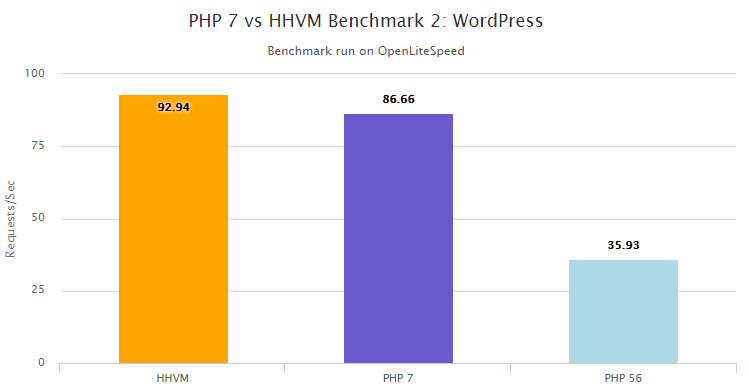
PHP 7 has become a hot topic in recent time as it claims to have the running speed catching up with HHVM whereas no big change in the source code is required, except for those deprecated function calls in the new release.

This is good news as nowadays Guest VM for hosting tends to be slim and small in terms of resources, i.e., 512MB, 256MB or smaller. Running a plain old build of Apache server with default settings is going to slow down everything.

This is a quick guide for a fresh installation of LAMPP server with newest PHP 7 engine on top of it. To maintain high response rates without interruption in a high concurrency situation, you may want to run PHP in CGI mode. Please check those steps below carefully. For the god sake, you might miss something along the passage without the help of a cup of coffee which is exactly my situation.

PHP 7 is now in the final stage before the official release is out. So, the source update is happening frequently than ever. As of the time of writing, it is PHP 7.0.0 RC 6. Of course, no one would like to miss that bit, even for nightly update.


Here we start in Terminal app on Ubuntu 14.04:

Step 1:


Try installing LAMPP from the ground up:

$
$ sudo apt-get update && sudo apt-get install lamp-server^


Please mind the caret (^) at the end.

You will have to install packages for Apache 2, MySQL & PHP 5 (not PHP 7 at the moment).

Step 2: (Optional)


You might want to upgrade a bit for the not-so-entirely-new version of Apache 2 which is locked in version 2.4.7 in Ubuntu 14.04 LTS Release as LTS implies not only a stable build but also less frequent update to its packages.

For upgrading Apache 2, you may add new repo to Ubuntu's source list and do a forced re-installation:

$
$ sudo apt-get install python-software-properties
$ sudo add-apt-repository ppa:ondrej/apache2
$ sudo apt-get update && sudo apt-get -f install apache2
$

Step 3:
Obtain PHP 7 early release


This is to add Zends PHP7 early access repo:

$
$ sudo echo "deb http://repos.zend.com/zend-server/early-access/php7/repos ubuntu/" >> /etc/apt/sources.list
$


To install PHP7 nighly build, we need to issue the following command:

$
$ sudo apt-get update && sudo apt-get install php7-nightly
$


Once done, PHP7 will be installed to /usr/local/php7. So you might want to keep this in mind to find something important regarding PHP configuration.

To use PHP7 with Apache, first make sure Step 1 is done properly, then copy the required modules and libs to Apache 2 folder:

$
$ sudo cp /usr/local/php7/libphp7.so /usr/lib/apache2/modules/
$ sudo cp /usr/local/php7/php7.load /etc/apache2/mods-available/
$


For initial PHP with OpCache configuration, we can create new php.ini in the following path:

/usr/local/php7/php.ini

Please copy and paste the following parameters into php.ini:
max_execution_time=600
memory_limit=128M
error_reporting=0
display_errors=0
log_errors=0
user_ini.filename=
realpath_cache_size=2M
cgi.check_shebang_line=0
zend_extension=opcache.so
opcache.enable_cli=1
opcache.save_comments=0
opcache.fast_shutdown=1
opcache.validate_timestamps=1
opcache.revalidate_freq=60
opcache.use_cwd=1
opcache.max_accelerated_files=100000
opcache.max_wasted_percentage=5
opcache.memory_consumption=128
opcache.consistency_checks=0


Step 4:
Install mod_fcgid module


$
$ sudo apt-get install libapache2-mod-fcgid
$


Step 5:
Enable and disable relevant Apache modules


Default build of Apache use MPM Event but for mod_fcgid to work we need to enable MPM Worker instead. Before enabling new MPM, we need to disable previously enabled MPM modules first.

For one important thing here, you might have to entirely disable PHP5 module in order to avoid any conflict with the upcoming PHP7. Apache can't have both PHP5 and PHP7 modules loaded for the same .php filetype handling or else Apache won't even start.

$
$ sudo a2dismod mpm_event
$ sudo a2dismod mpm_prefork
$ sudo a2enmod mpm_worker
$ sudo a2dismod php5
$


Step 6:
Enable SSL in Apache


Enable SSL module as follow:

$
$ sudo a2enmod ssl
$ sudo mkdir /etc/apache2/ssl
$

Prepare self-signed certificate:

$
$ sudo openssl req -x509 -nodes -days 3650 -newkey rsa:2048 -keyout /etc/apache2/ssl/apache.key -out /etc/apache2/ssl/apache.crt
$

The key and certificate will be created and placed in your /etc/apache2/ssl directory.

Open the default SSL configuration file with root privileges now:

$
$ sudo nano /etc/apache2/sites-available/default-ssl.conf
$

Modify two lines to match the newly created certificate files:

        SSLCertificateFile /etc/apache2/ssl/apache.crt
        SSLCertificateKeyFile /etc/apache2/ssl/apache.key

And finally it may look like this:
<IfModule mod_ssl.c>
    <VirtualHost _default_:443>
        ServerAdmin webmaster@localhost
        DocumentRoot /var/www/html
        ErrorLog ${APACHE_LOG_DIR}/error.log
        CustomLog ${APACHE_LOG_DIR}/access.log combined
        SSLEngine on
        SSLCertificateFile /etc/apache2/ssl/apache.crt
        SSLCertificateKeyFile /etc/apache2/ssl/apache.key
        <FilesMatch "\.(cgi|shtml|phtml|php)$">
                        SSLOptions +StdEnvVars
        </FilesMatch>
        <Directory /usr/lib/cgi-bin>
                        SSLOptions +StdEnvVars
        </Directory>
        BrowserMatch "MSIE [2-6]" \
                        nokeepalive ssl-unclean-shutdown \
                        downgrade-1.0 force-response-1.0
        BrowserMatch "MSIE [7-9]" ssl-unclean-shutdown
    </VirtualHost>
</IfModule>

To activate SSL Virtual Host, please type:

$
$ sudo a2ensite default-ssl.conf
$


Step 7:
Add mod_fcgid related configurations


Go find the default configuration files for Apache, like

/etc/apache2/sites-enabled/000-default.conf

/etc/apache2/sites-enabled/default-ssl.conf

Edit each file with the following instructions.

Add the following configuration to the root directory section in the vhost block:

<Ifmodule mod_fcgid.c>
 # FCGID registers a handler named fcgid-script
 AddHandler fcgid-script .php
 Options +ExecCGI
 FcgidWrapper /usr/local/php7/bin/php-fcgid-wrapper
</IfModule>


Also, add the relevant settings outside the vhost block:

<Ifmodule mod_fcgid.c>
 # Context - server config
 FcgidMaxProcesses 150
 # Otherwise php output shall be buffered
 FcgidOutputBufferSize 0
</IfModule>


Step 8:
Add Wrapper script of php-cgi


Now you need to create the wrapper script that is used by mod_fcgid to launch php-cgi processes.

Script filename: php-fcgid-wrapper

#!/bin/sh
# Set desired PHP_FCGI_* environment variables.
# Example:
# PHP FastCGI processes exit after 500 requests by default.
PHP_FCGI_MAX_REQUESTS=10000
export PHP_FCGI_MAX_REQUESTS
# Replace with the path to your FastCGI-enabled PHP executable
exec /usr/local/php7/php-cgi


The actual location of the wrapper script at /usr/local/php7/bin/php-fcgid-wrapper can be stored anywhere and the path has to be mentioned in apache configuration.

Make the wrapper script executable using chmod:

$
$ chmod +x /usr/local/php7/bin/php-fcgid-wrapper
$


Step 9:
Turn on Apache server


This is the final and the most important step for all those configurations we have made:

$
$ sudo service apache2 restart
$

Step 10:
Testing


You can open a browser locally and visit https://localhost to check if SSL connection is working properly.

Or, try create a simple php info page to see if all parameters are setting as desired:

$
$ sudo echo "<php phpinfo();" /var/www/html/test_me.php
$

It's been a long time PHP's performance seems to be lagging behind since Facebook's era comes. People who are aggressive might lean to take HHVM approach to accelerate things up, yet the development team might meet new challenges with switching coding practice and taking the risk of incompatibility with official PHP release.


You go for the option of PHP7 as you have the needs for speed. Forgetting about compatibility and performance sacrifice, let's test your apps with this brand new PHP engine!


Sunday, October 4, 2015

Fix Hombrew problems after upgrading Mac OS X from Mavericks to El Capitan, skipping Yosemite

I have been sticking with Mavericks (OS X 10.9.x) since released and now skip Yosemite and directly upgrade to the solid build of El Capitan (OS X 10.11). It's just a direct upgrade and things seem to be working after a couple of reboots.

Well, we all know installed packages may not work at all. For instance, Developer tools like Homebrew seems broken again.

As seen on the Github, people have started collaborating with each others to resolve this.

https://github.com/Homebrew/homebrew/issues/40519

First thing to fix broken Homebrew directory is the permission issue. Error like this for brew update command:

xcrun: error: invalid active developer path (/Library/Developer/CommandLineTools), missing xcrun at: /Library/Developer/CommandLineTools/usr/bin/xcrun
Stashing your changes:
xcrun: error: invalid active developer path (/Library/Developer/CommandLineTools), missing xcrun at: /Library/Developer/CommandLineTools/usr/bin/xcrun
Error: Failure while executing: git stash save --include-untracked --quiet


So, try the following command first:

sudo chown $(whoami):admin /usr/local && sudo chown -R $(whoami):admin /usr/local

Second trial of brew update, another error appeared while doing brew update as follows:

Error: Failure while executing: git pull -q origin refs/heads/master:refs/remotes/origin/master.

Since major upgrade, we need to install recent release of Xcode Command Line Tools. An easy way is to install Xcode 7.0.1 from AppStore and then open Xcode to agree the terms and conditions.

Within CXcode, click menu item:

[Xcode]->[Open Developer Tool]-> [More Developer Tools...]

It helps to open Apple's download website for Developer Tools.

Click to download and install the following package :

Command Line Tools OS X 10.10 for Xcode 7

Reopen Terminal again and then try brew update, once again another error message shows up. But this time it looks like things get fixed by the second call of brew update command. So, issue the update command twice to get itself fixed and ready:

$brew update
#Error message...
$brew update
#It works this time...


Saturday, September 26, 2015

Ultimate Guide on TP-LINK Archer C2 AC750 Wireless Dual Band Gigabit Router - USB Printer sharing on OS X

This guideline should be applying to any USB compatible printer for sharing on OS X over the USB port of TP-LINK Archer C2 Wireless Router.


The best thing of this router is that it's NBN ready and has both WAN/LAN ports supporting up to 1000Mbps which is abundant for movie streaming and VOIP communications within local network and a possible extension to future upgrade of NBN services. As for 802.11ac standard, this router does the right job for 5GHz Wi-fi transfer which is up to 433Mbps. It's also backward compatible with 802.11b/g/n. The cost is average but you might feel good about having an 802.11ac compliant router with this price tag. Compared with my old 802.11n router, it really makes a difference in terms of the speed and stability. One benefit is beamforming if you are using newer Macbook with antenna supporting 802.11ac standard.

Ref: http://www.tp-link.com.au/products/details/cat-9_Archer-C2.html

However, the firmware and software support is limited for this brand. Yet, it's still possible to find have a software upgrade to make things working.

First thing first, upgrade the firmware to the latest stable version via here:

Ref: http://www.tp-link.com.au/download/Archer-C2.html#Firmware

High-end product like Archer C7 is based on the same architecture as C2 so their technical support recommended using newer version of software available for Archer C7 instead.

Ref: http://www.tp-link.com.au/products/details/cat-9_Archer-C7.html

The key to bridge up the USB printer connected to the router is the software called:
TP-LINK USB Printer Controller

It's better to use the package from a recent release of newer product line like Archer C7:

Try downloading the installation package 

Archer C7_V2_USB_Printer_Controller_Installer_Mac 

from here:

http://www.tp-link.com.au/download/Archer-C7.html#Utility 

Extract it and find the .DMG file to install on Mac OS X:

TP-LINK_USB_Printer_Controller_Installer_Mac.dmg

A system reboot is required.

Before opening the printer controller software, it is necessary to have USB printer plugged into your Mac computer first and finish an initial setup based on USB connection. Assuming you have the printer driver for your USB printer, it's an easy but important step to setup a local printer profiler on your Mac.

Once it's successful on setting up your print via local USB connection, you should have a available local printer in "Printers and Scanner" Control Panel. 

Now you can proceed to plug the USB printer into the USB port of TP-LINK Wireless Router for remote setup.

The software TP-LINK USB Printer Controller will let you to bridge up the remote printer to your local USB printer profile. It may show offline at first but will turn into online mode after the first remote printing is done successfully.

Assuming you are connecting to the Wi-Fi network from TP-Link Wireless Router, you need to open up TP-LINK USB Printer Controller interface. 

Under the Router's name, you should find the USB printer device (whether it's UNKNOWN or exactly the printer model name) already connected to the router. 


Click on the printer device and click on Auto menu button and then "+Set Auto-Connect Printer" button to find the installed printer list of available local printer profiles on you Mac. 

Select the target printer profile and click Apply button to link up the remote printer and you're done.

Remember to keep TP-LINK USB Printer Controller Window opening during remote printing process. Now, you can have a try to print out anything you like with your local printer profile on your Mac and the print job will be redirected to the shared printer on the wireless router.


Tuesday, August 4, 2015

Solving IE problem the HTML way - "This page contains both secure and nonsecure items. Do you want to display the nonsecure items?"

For some reason, IE may complain about mixed content while visiting the website via TLS/SSL. From the user point of view, the only way to resolve this would be changing setting in IE browser.

However, the developer may do a little bit more to tackle this and eliminate possible cause to trigger this kind of error message on IE.

As what many forum users suggested, the first thing to look in the source code would be src attribute of image files which sometimes points to non-HTTPS URL and lead to error.

For what I have been experiencing is somehow a bit different than this common syntax error, IE reports mixed content error when I insert something simple like this:


...
< div style="display:none" >
< input id="but" name="but" onclick="..." type="button" value="Press Here" /> 
< div />
...


To hide particular <div /> container, there is no other simpler way than the one above. As you can see there is an input button within invisible <div /> container. This tiny input button DOES create trouble as IE actually complains mixed content error from here.

So, let's have a change to the code and make IE silent with this:


...
< div style="display:none" >
<span class="CSS_button_style" id="but" name="but" onclick="..." > Press Here </span>
< div />
...


We basically swap <input /> element with <span /> element and try the best to make it look like the original button by using CSS. User should not notice any difference if we apply CSS style which mimics the style of button <input /> element.

Monday, May 4, 2015

Install Perl HL7 Toolkit on XAMPP OS X Mavericks

Perl version HL7 Toolkit is in its alpha stage but offers general support to HL7 V.2 messaging.

The Perl HL7 toolkit consists of:

Net::HL7, a lightweight Perl API for parsing, formatting, manipulating, sending and receiving HL7 messages,
hl7d, an implementation of a forking HL7 server for inbound interfaces, and
hl7qd, an HL7 queue daemon for outbound interfaces.

For basic testing, we'll need Perl module like Net::HL7 installed properly and a running HL7 server like hl7d daemon.

OS X Mavericks comes with its own version of Perl which is suitable for running scripts for system administration whereas most users should avoid touching it for development.

Alternatively, users can install their favourite version of Perl to run the scripts with specific modules installed on the system.

For web development, bundled package like XAMPP is accompanied with latest version of Perl which collaborates with Apache module mod_perl to delivery services to Internet users.

With CPAN already installed under XAMPP folder, it's easy to install the toolkit.

For the very first time using of CPAN under XAMPP by simply typing

$ /Applications/XAMPP/xamppfiles/bin/cpan

in Terminal Window, you'll be asked questions to setup the environment and you can almost give default answer to every single question of this. Once done, you're ready to install Perl module to support HL7 within XAMPP.

To run HL7 toolkit, you'll need Perl module Net::HL7:
$ /Applications/XAMPP/xamppfiles/bin/cpan install Net::HL7


Before all these, just need to make sure the version of Perl running as default to be in the path of XAMPP installation, i.e., /Applications/XAMPP/xamppfiles/bin/

For sure, please run a test like this:
$ which perl
/Applications/XAMPP/xamppfiles/bin/perl

Please notice that most Perl scripts may start with the beginning statement like this:
#!/usr/bin/perl

This actually points to the default installation of Perl whereas desired Perl modules like Net::HL7 might not exist at all.

To test whether your version of Perl has desired module installed, please try this command:

$ perl -e 'use XXXX::xxxx;'

If the specific module is not installed, general error message would be like this even after installing your favourite Perl module with CPAN:

Can't locate XXXX/xxxx.pm in @INC contains: ...

So, basically, you should not run Perl script by just typing ./?????.pl in Terminal. Instead, using full path of Perl to call the script:

$ /Applications/XAMPP/xamppfiles/bin/perl ./?????.pl

This ensure that your desired version of Perl is used to run the script.

To install hl7d server, you may download the package to local drive via this link:
http://hl7toolkit.sourceforge.net/#hl7d

Unzip the *.tar.gz file to extract a folder with source code for building:
$ tar -xzf hl7d-(version).tgz

And then start installation in good old fashion style:
$ cd hl7d-
$ perl Makefile.PL PREFIX=
$ make
$ make test (none yet, but read the output!)
$ make install

You can also copy sample scripts to hl7d's installation directory.
$ cp t/* /usr/local/hl7d-(version)/t/

For Perl version of hl7d server, there is a little change to make it running successfully under OS X environment.

After the installation of hl7d, please change the line for LocalPort setting in hl7d.pl as follow:
# establish SERVER socket, bind and listen.
#
my $server = new Net::HL7::Daemon
    (
  #LocalPort => $cfg{PORT},
         LocalPort => 12002,
         Listen    => $cfg{LISTEN}
     );
$server or die "Couldn't create daemon";
This makes sure hl7d daemon starts properly at port 12002.

To start hl7d server in debug mode, please type in the command:
$ /usr/local/hl7d-/hl7d.pl --nodetach --debug

And then you can try sample client Perl scripts within /usr/local/hl7d-/t/ subfolder in another Terminal Window. When succeeded, you will receive messages from the Terminal which hl7d server is running.

For PHP web application in XAMPP, you must install another module Net_Socket first:
$ /Applications/XAMPP/xamppfiles/bin/pear install Net_Socket

To test out PHP script running within XAMPP web application, you can create test.php file:
<?php
require_once "Net/HL7/Segments/MSH.php";
require_once "Net/HL7/Message.php";
require_once "Net/HL7/Connection.php";
require_once 'Net/Socket.php';

$msg  = new Net_HL7_Message();
$msg->addSegment(new Net_HL7_Segments_MSH());

$seg1 = new Net_HL7_Segment("PID");

$seg1->setField(3, "XXX");

$msg->addSegment($seg1);

echo "
Trying to connect
"; $socket = new Net_Socket(); $success = $socket->connect("localhost", 12002); if ($success instanceof PEAR_Error) {     echo "
Error: {$success->getMessage()}
";     exit(-1); } $conn = new Net_HL7_Connection($socket); echo "
Sending message\n" . $msg->toString(true) . "
"; $resp = $conn->send($msg); $resp || exit(-1); echo "
Received answer\n" . $resp->toString(true) . "
"; $conn->close(); ?>